Page anatomy
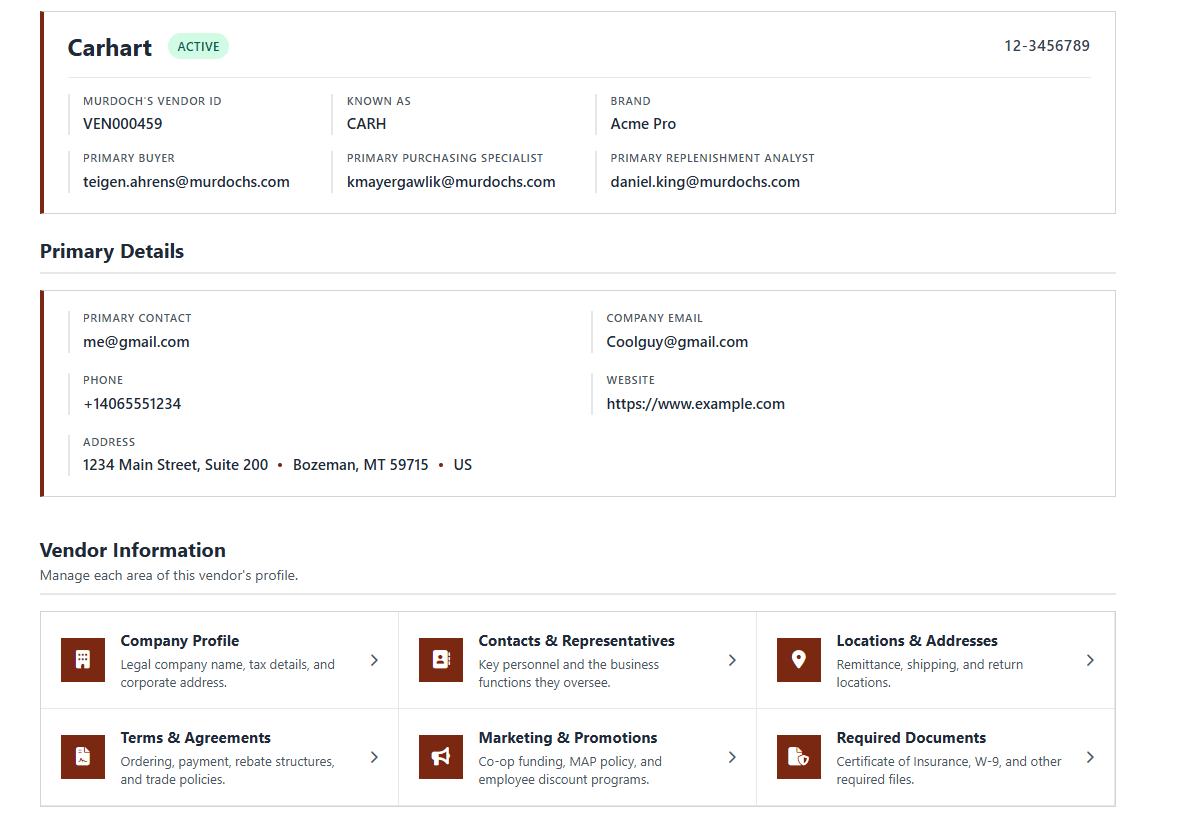
Header
The top card summarizes who the vendor is at a glance. Fields are populated during Onboarding and can be updated on the Company Profile page.Primary Details
A quick-reference block with the vendor’s main contact info: primary contact, company email, phone, website, and physical address. This mirrors the primary contact and default remit-to address stored on the Contacts and Addresses pages.Vendor Information tiles
Six tiles let you jump into each management section:Company Profile
Legal company name, tax details, and corporate address.
Contacts & Representatives
Key personnel and the business functions they oversee.
Locations & Addresses
Remittance, shipping, and return locations.
Terms & Agreements
Ordering, payment, rebate structures, and trade policies. Includes Order Details, Payment Terms, Rebates, Defective & New Stores, Special Orders, and Import Only.
Marketing & Promotions
Co-op funding, MAP policy, and employee discount programs.
Required Documents
Certificate of Insurance, W-9, and other required files.
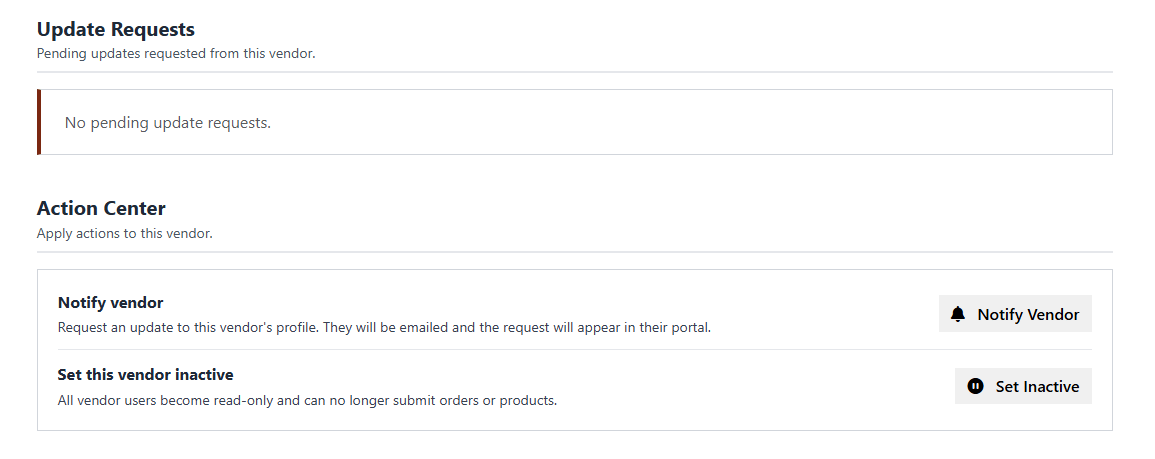
Update Requests and Action Center
Scroll below the tiles to see two additional panels used by employees who work directly with the vendor.