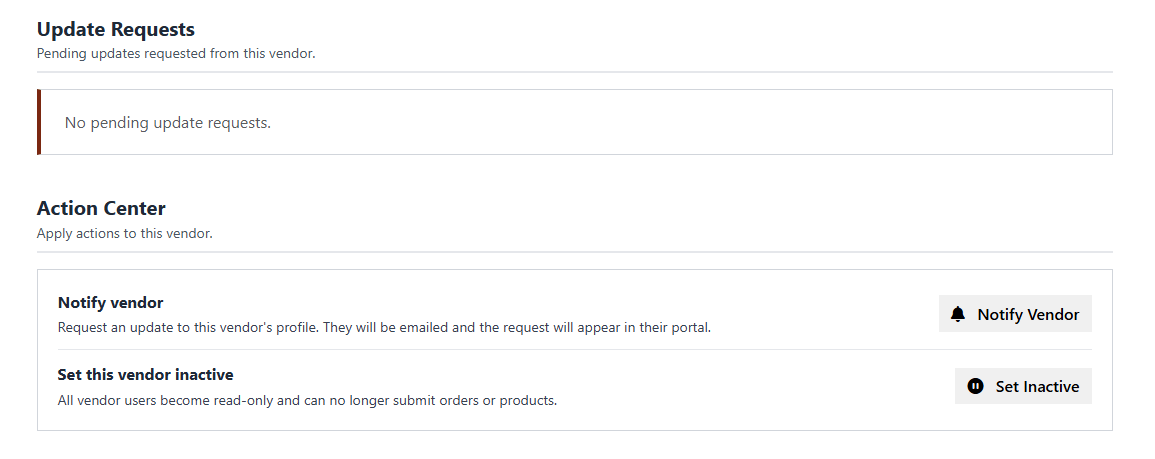
Notify Vendor
Use Notify Vendor when you need the vendor to update their own record — for example, an expired Certificate of Insurance or new remittance address. Who can trigger: Employees in the Murdochs: Purchasing group. See Roles & Permissions.What happens
1
Choose what to request
Select the section(s) the vendor needs to update — Company Profile, Contacts, Addresses, Documents, etc.
2
Send the notification
Click Notify Vendor. The system:
- Emails the vendor’s Primary contact (from the Contacts page).
- Adds an item to the vendor’s portal inbox.
- Creates an entry in the Update Requests panel on this vendor’s page.
- Adds an item to the employee-side Notifications Inbox.
3
Wait for the vendor to respond
The Update Request stays open until the vendor submits their changes. Once submitted, the request appears for review — see Notifications Inbox.
Set Inactive
Set Inactive deactivates the vendor record. Use it when the vendor is no longer selling to Murdoch’s or when the record is being retired.What happens when a vendor is set inactive
- The Status pill on the Vendor Details Overview changes to Inactive.
- All vendor users associated with the record become read-only — they can sign in and view data but cannot edit anything or submit new products.
- The vendor no longer appears in the “select vendor” dropdown when starting a new PPL — see Start a New PPL.
- Existing open PPLs and softgoods orders remain intact but any pending vendor action is effectively blocked.
- The vendor’s Dynamics 365 F&O link is preserved — the record is not deleted.
Reactivating
A Murdochs: Purchasing employee can flip the status back to Active at any time from the Vendor Details Overview. Vendor users regain edit access on their next sign-in.Common issues
- “Notify Vendor” button is disabled. The vendor has no Primary contact assigned. Fix this on Contacts.
- Vendor did not receive the notification email. Check the Primary contact’s email on Contacts and confirm the vendor’s email server is not filtering the message. Re-send the notification.
- Vendor is Inactive but users can still edit. Have them sign out and back in — permission changes take effect at login.